Hex Reveal
Reveal hexcrawl maps hex by hex using per-hex fog, laid out on the scene's hex grid.
Manifest URL
https://hex-reveal.dungeonsanddevs.com/manifest.jsonHex Reveal is an Owlbear Rodeo extension for hexcrawls. It covers every hex of a map with its own piece of fog, and the GM reveals the map one hex at a time as the party explores. It should work with any hex map. I have tested with all the hex maps included with Shadowdark Cursed Scrolls and the Western Reaches expansion as well as the Dolmenwood VTT maps.
Install
You need an Owlbear Rodeo account to add extensions. Your players don’t need to install anything.
- In Owlbear Rodeo, open your Profile and press Manage next to Extensions.
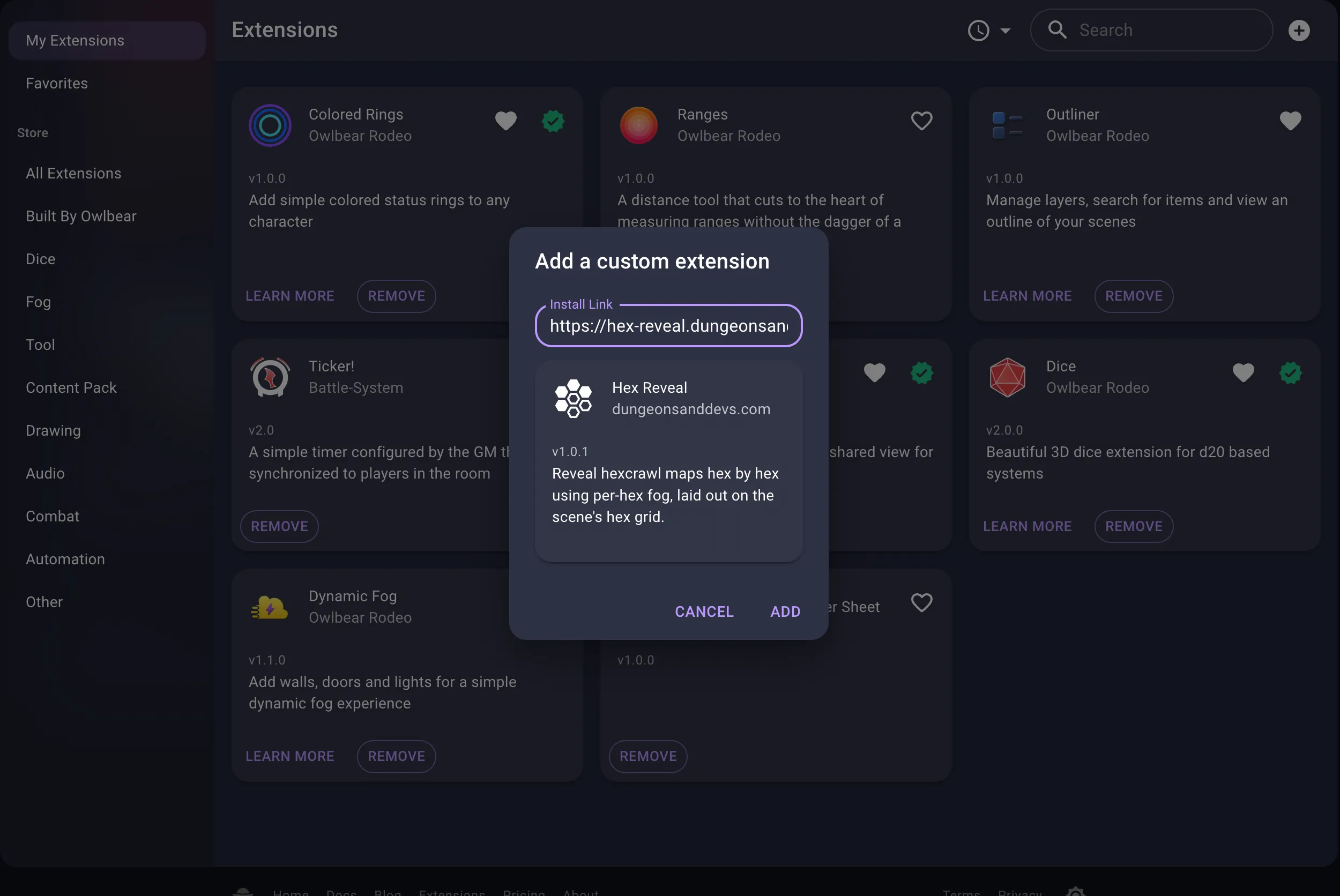
- Press the + button at the top right of the Extensions window to add a custom extension.
- Paste the manifest URL from the top of this page into Install Link. Hex Reveal appears in a preview card. Press Add.
- Turn Hex Reveal on in each room where you want to use it. For a new room, switch it on in the Extensions list when you create the room. For an existing room, use the room’s extension settings.
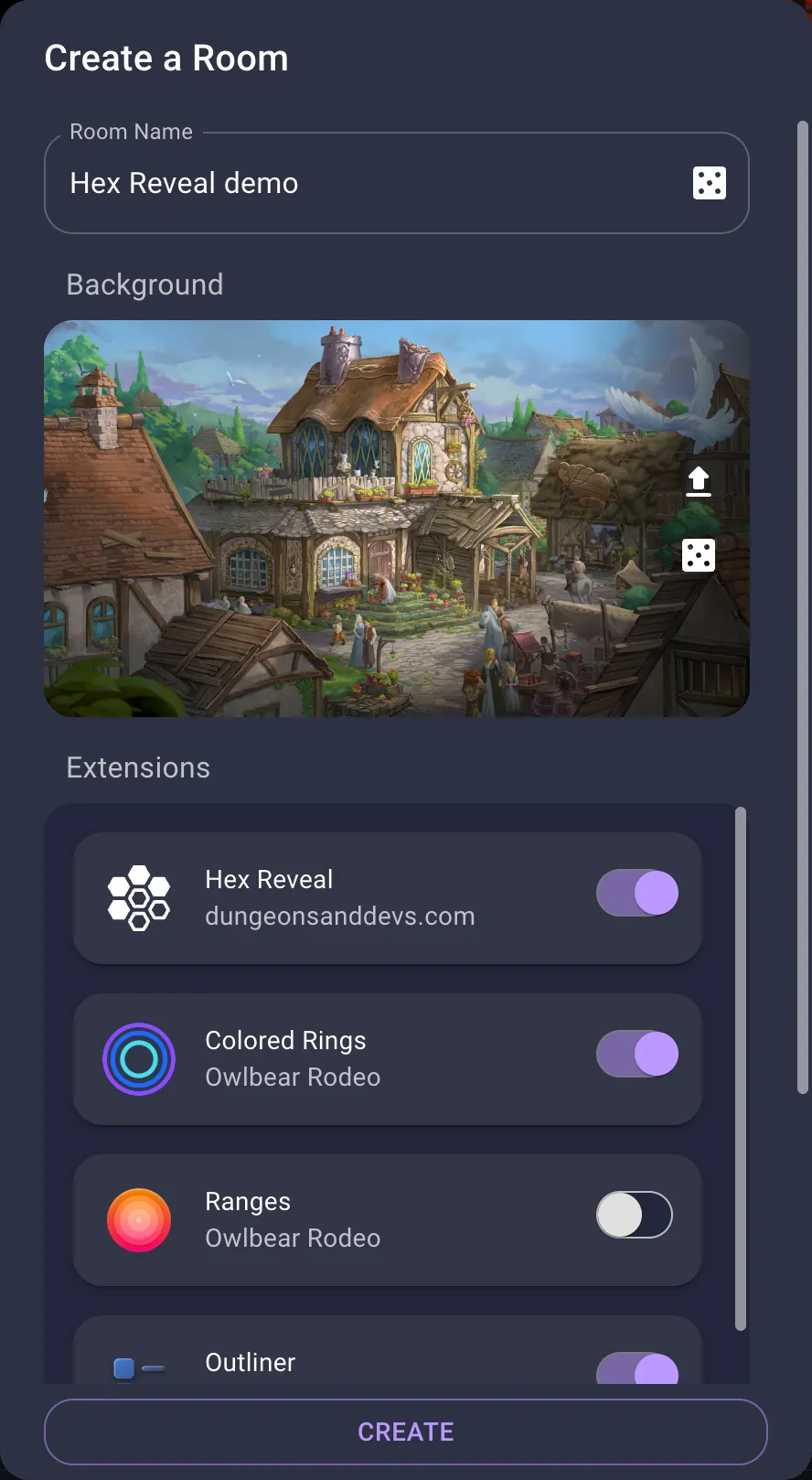
When it’s on, the Hex Reveal icon (a cluster of hexagons) shows up in the extension bar at the top left of the room.
Quick start
- Add your hex map to the scene as a map, and don’t rotate it.
- Open Hex Reveal from the extension bar and press Find the hexes.
- Check that the pink outline matches the map’s hexes. You can also press Align scene grid so tokens snap to the hexes.
- Press Add fog, then click or drag over hexes with the Hex Reveal tool to reveal them.
The rest of this page goes through each step in detail.
Set up a map
1. Put the map in the scene
Add the map image to the scene on the Map layer, which is the default when you create a scene from an image. Leave it unrotated while you set it up. You can move, scale or rotate it afterwards, and the fog will follow it.
2. Find the hexes
Open Hex Reveal from the extension bar. Choose your map in the drop-down (it’s already selected if the scene has only one map) and press Find the hexes. Hex Reveal reads the map image and looks for its hex grid.
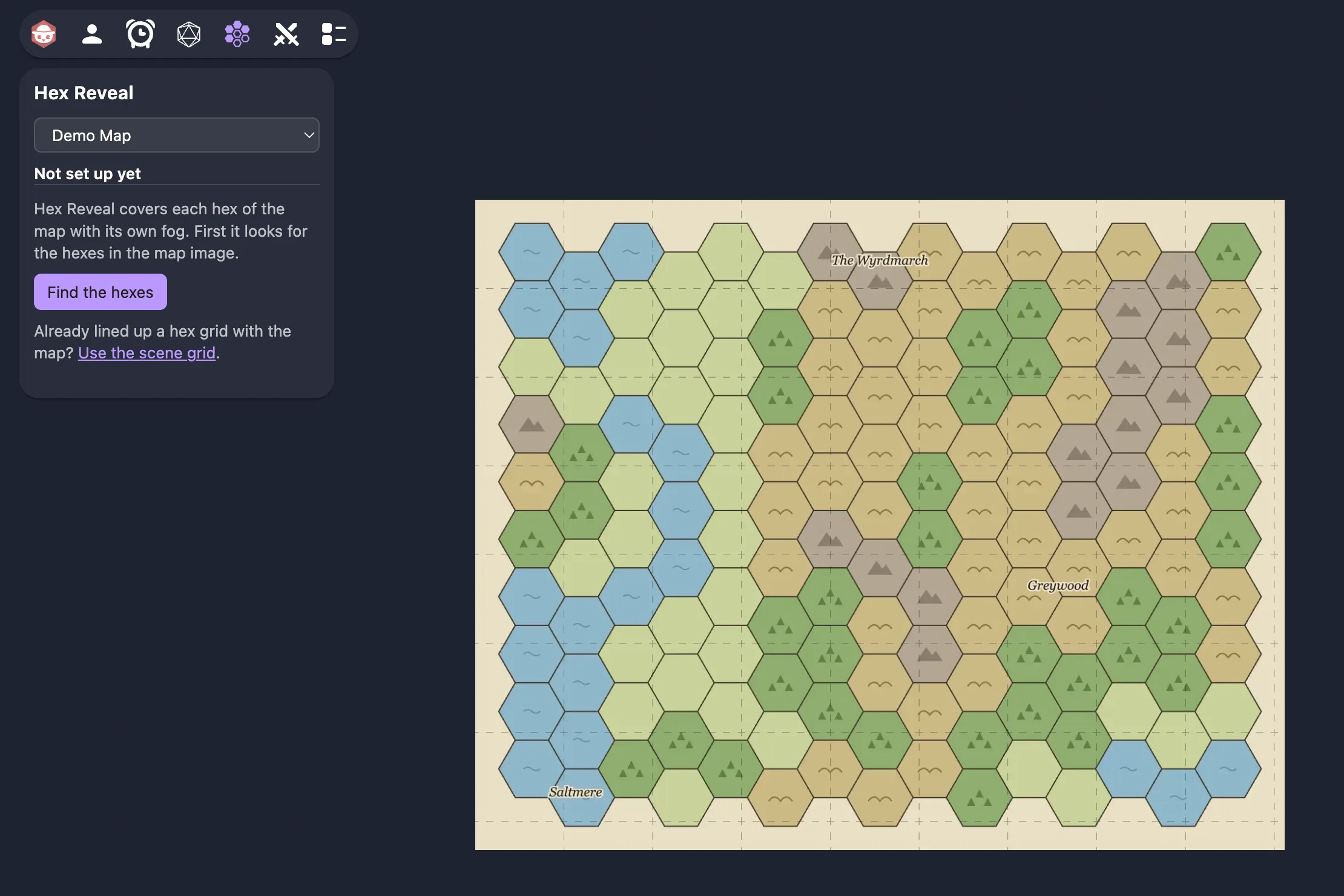
You can also select the map, right-click it and choose Hex Reveal: set up… from its menu.
3. Check the outline
Hex Reveal draws a pink outline over the hexes it found, and tells you how many there are, which way they point (flat-top or pointy-top), and how far apart they are. Only you see the outline. Your players don’t.
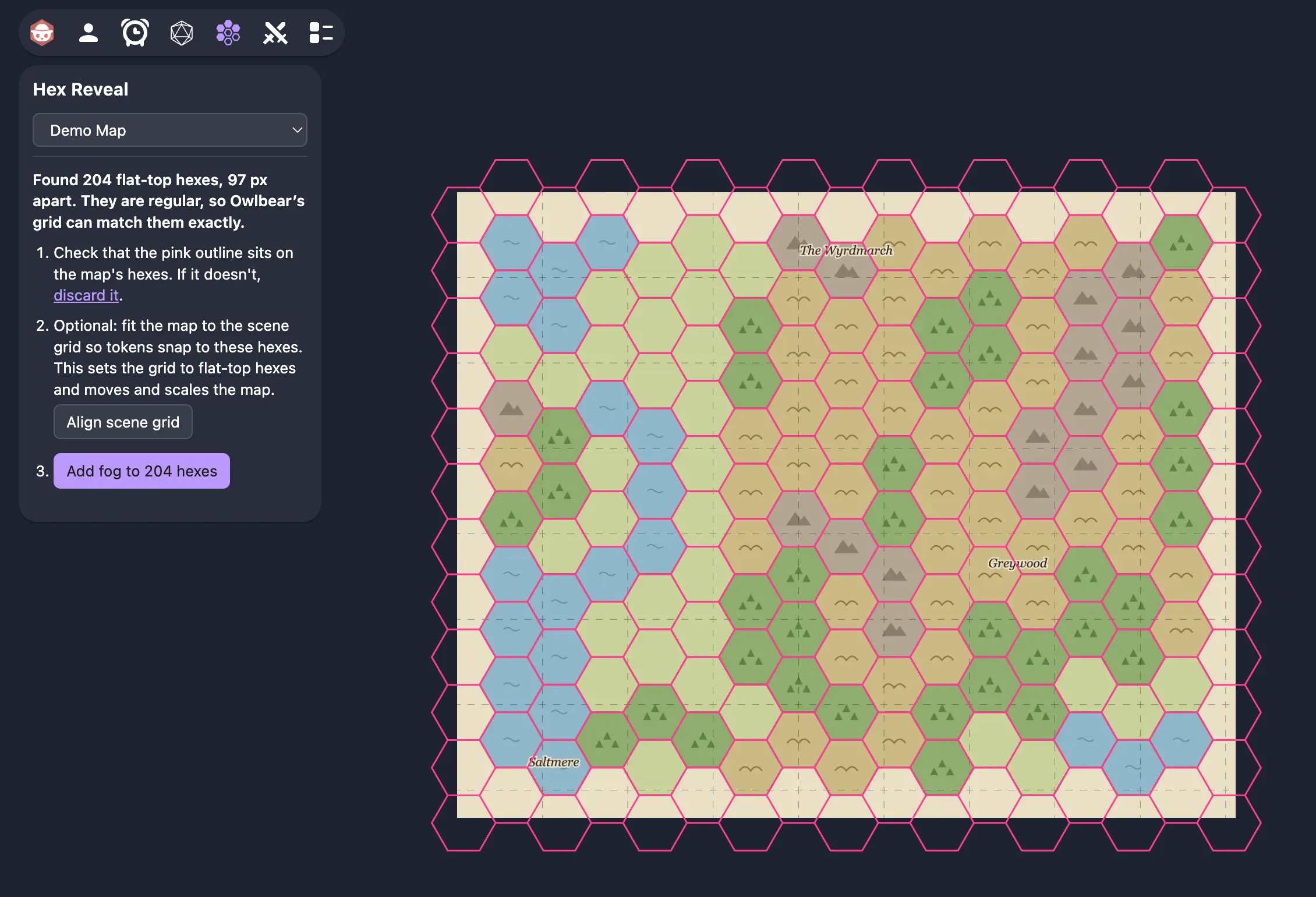
Look along the edges and in a few spots in the middle to make sure the pink lines sit on the map’s hex lines. The outline usually goes a little past the edge of the map, because every hex that touches the image gets fog. If the outline is wrong, press discard it and see Troubleshooting.
4. Align the scene grid (optional)
Align scene grid changes Owlbear’s grid to the same kind of hex and moves and scales the map so its hexes sit exactly on the grid. Do this if you want tokens to snap to the map’s hexes. The popover shows a ✓ when the grid lines up.
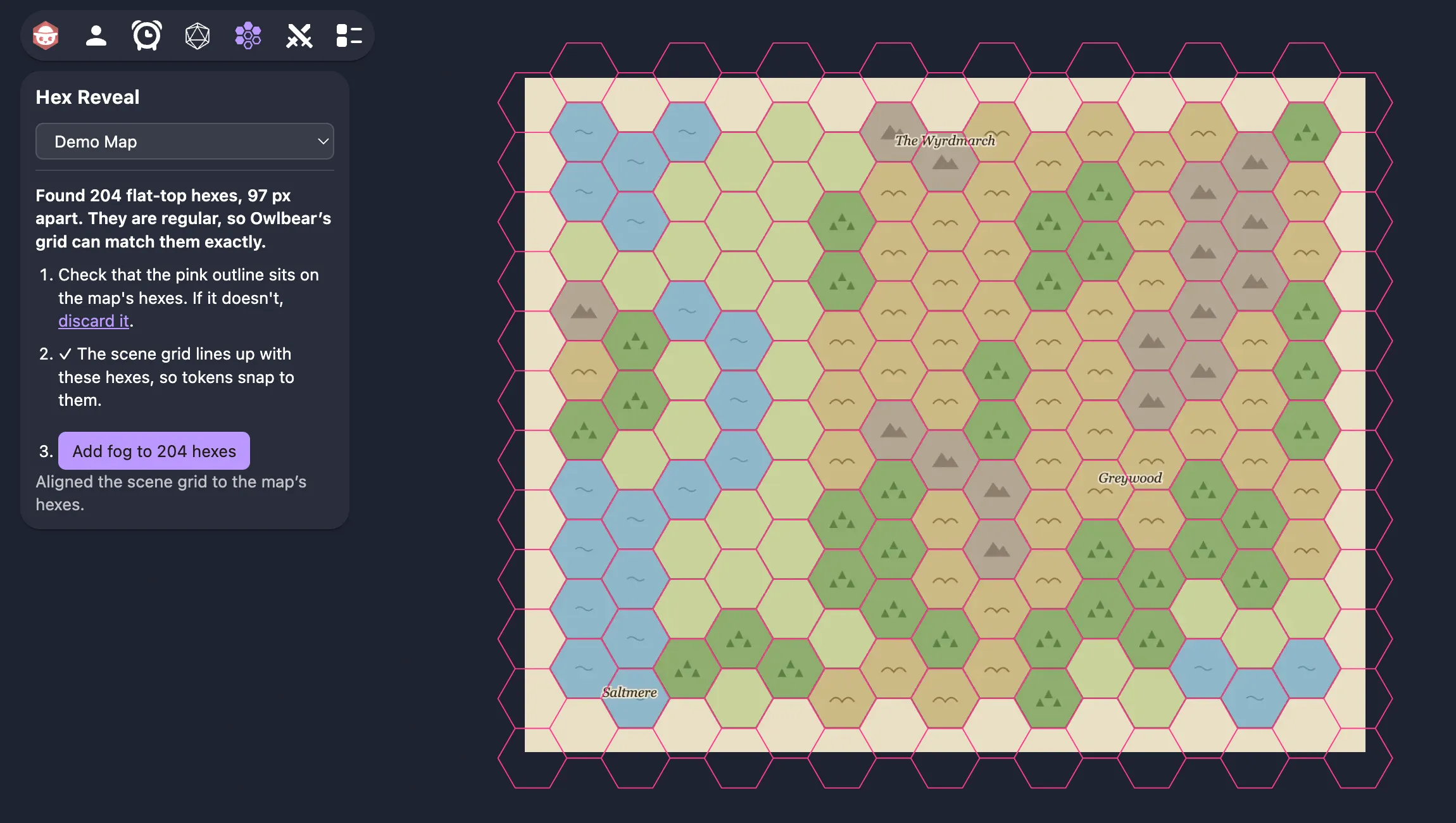
If the map’s hexes are slightly stretched, aligning stretches the map to match. Extensions can’t change the grid’s size, so Hex Reveal fits the map to the grid instead.
5. Add the fog
Press Add fog to N hexes. Every hex is now covered. As the GM you see the map through a dimmed layer of fog. Your players see solid fog.
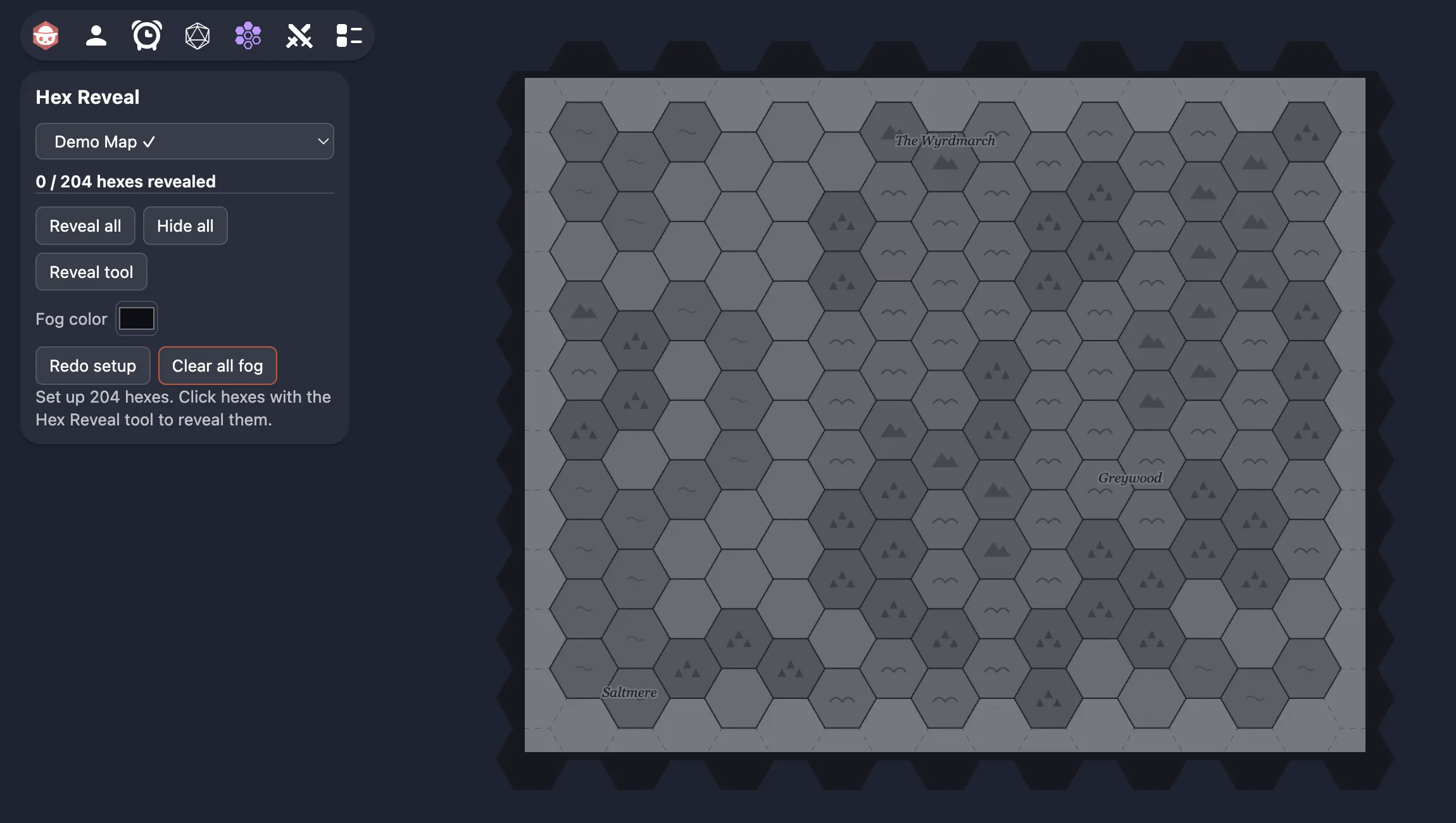
Setup is done. The layout is saved on the map, so you only do this once per map.
Reveal hexes
Pick the Hex Reveal tool in the toolbar on the right. It’s selected for you after you add fog, and the Reveal tool button in the popover also selects it. Then:
- Click a hex to reveal it. Click a revealed hex to hide it again.
- Drag across hexes to reveal several in one stroke. If the drag starts on a revealed hex, it hides hexes instead.
The popover keeps count of how many hexes are revealed.
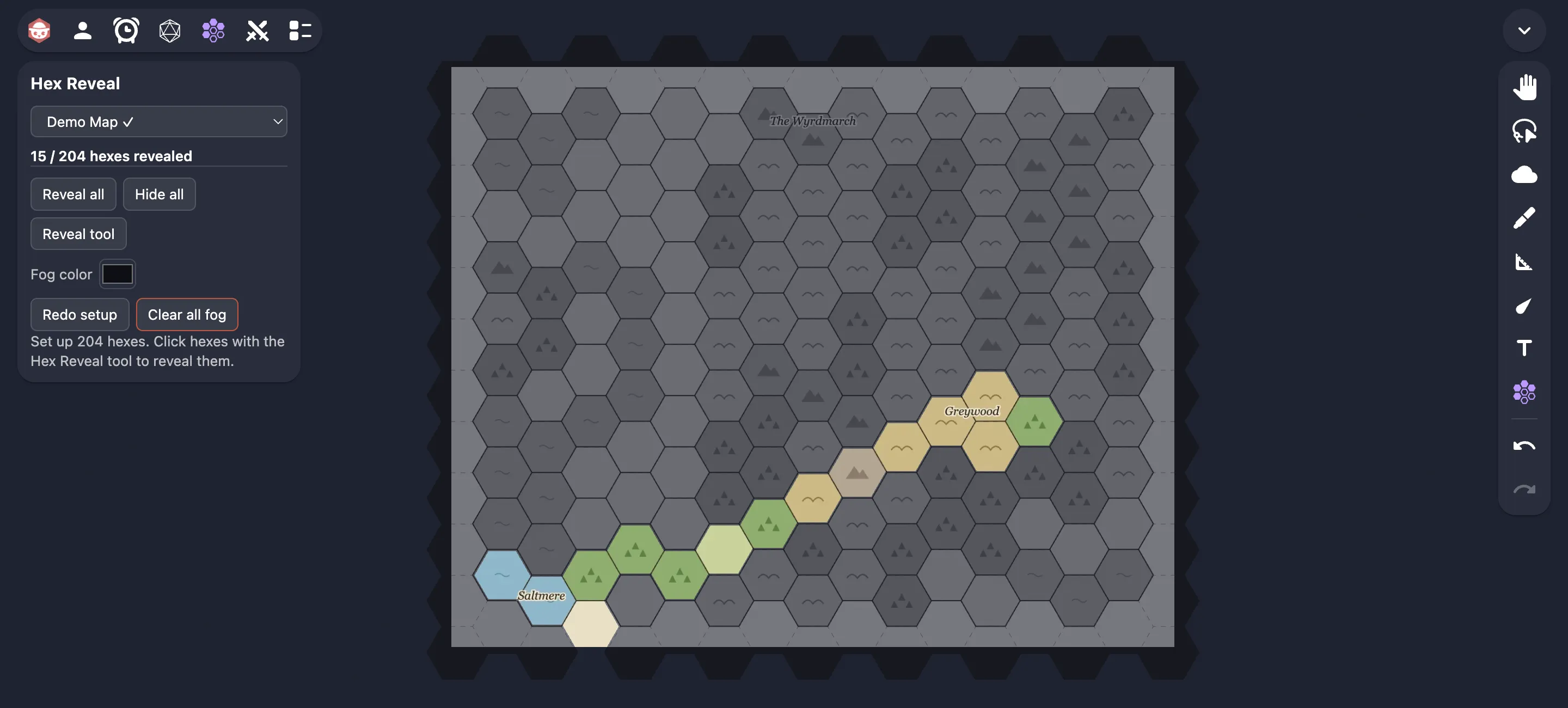
Reveal all removes the fog from every hex and asks first. Hide all covers every hex again straight away.
What players see
Players see solid fog everywhere except the hexes you’ve revealed. Changes show up for them as you make them. If a player opens the Hex Reveal popover, it only says that the GM reveals the map hex by hex.
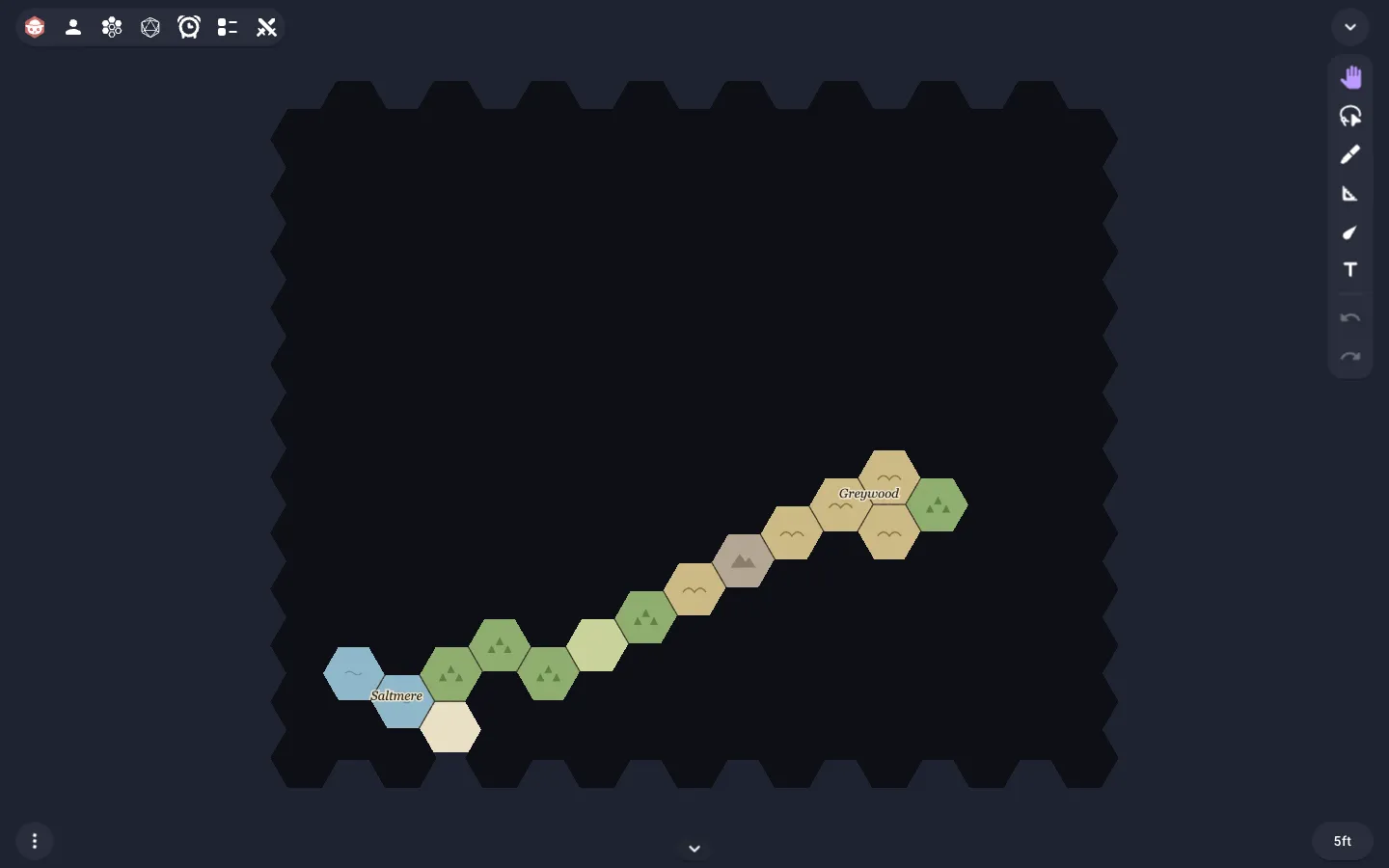
Manage the fog
- Fog color sets the color of the fog for the whole scene, as players see it.
- Redo setup goes through the setup steps again, for example if you want to fix the outline. Revealed hexes stay revealed.
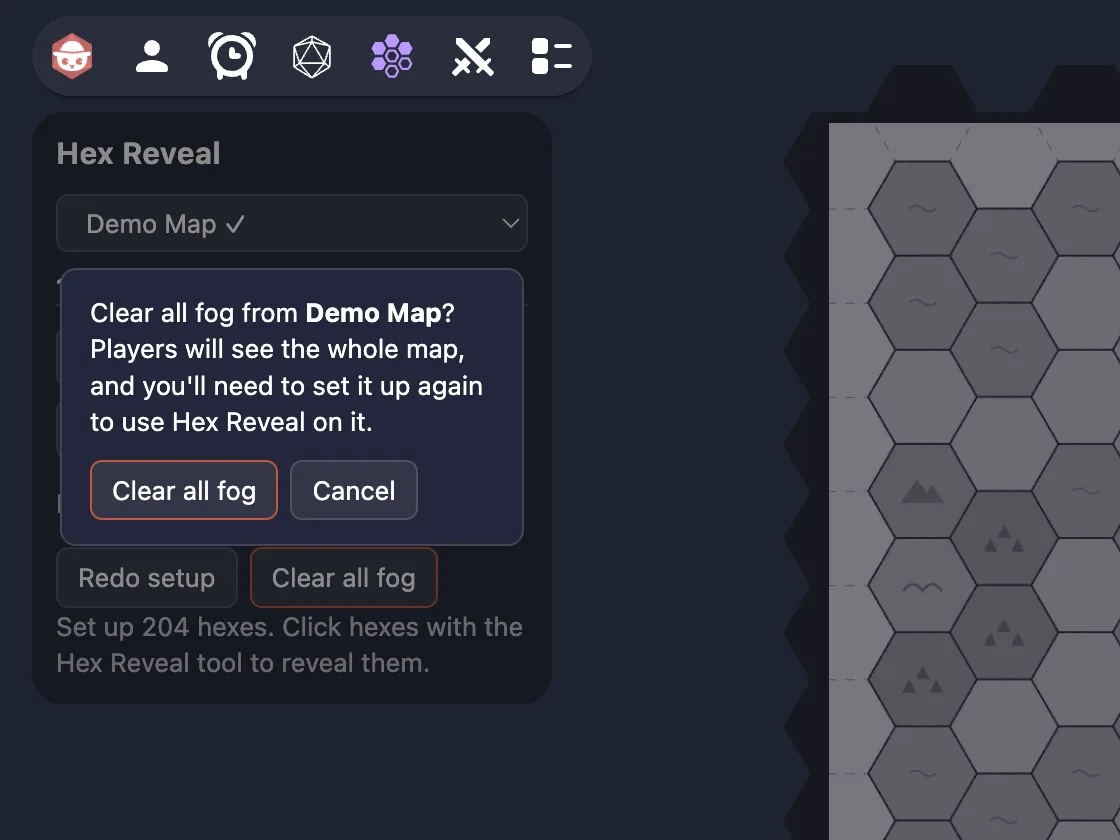
- Clear all fog removes the map’s fog and its setup. It asks first, and you’ll need to set the map up again to use Hex Reveal on it.
The fog is attached to the map, so moving, scaling or rotating the map after setup keeps everything lined up. Each map in a scene has its own setup and fog. Choose the map in the popover’s drop-down to switch between them.
Troubleshooting
The pink outline doesn’t match the map. Hex detection works best on maps with thin, straight grid lines. Faint lines, or art full of repeating icons, can confuse it. Discard the outline and set the grid up by hand:
- In Owlbear’s scene settings, set the grid type to flat-top or pointy-top hexes to match the map.
- Move and scale the map until its hexes sit on Owlbear’s grid.
- In Hex Reveal, press Use the scene grid, then add the fog.
Hex Reveal can’t read the map image. Sometimes Owlbear won’t let extensions read an image. When that happens a Pick the image file… button appears. Choose the same image file from your computer and Hex Reveal will search that instead. The file stays on your computer and isn’t uploaded.
“Rotate the map back to 0° for setup.” Hex Reveal needs the map unrotated while you set it up. Set its rotation back to 0°, finish setup, and then rotate it again if you like.
Very large maps. Hex Reveal handles up to 20,000 hexes per map.